
Data loss can happen without warning. A failing hard drive, accidental deletion, or a system upgrade can put valuable files and operating systems at risk. That is why disk cloning software has become an essential tool for home users, IT professionals, and businesses alike. Unlike a simple file backup, cloning software creates an exact copy of an entire drive, making it much easier to migrate to a new SSD, replace an aging hard drive, or recover quickly after hardware failure.
When searching for reliable cloning solutions, many users turn to kracensoft.com to explore software recommendations, system utilities, and practical tools that simplify disk management. Understanding the available options before starting a cloning project can save both time and frustration.
Why Disk Cloning Matters
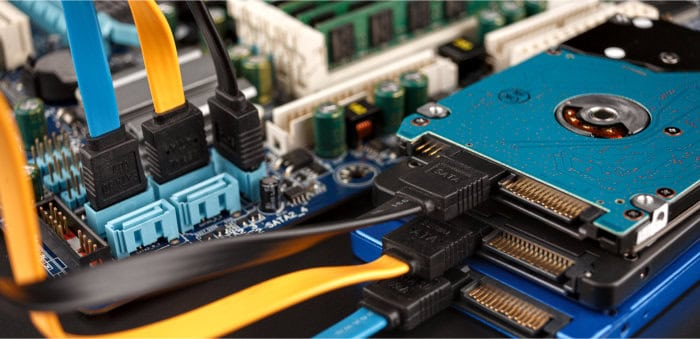
Disk cloning creates an exact replica of your storage device, including the operating system, applications, settings, partitions, and personal files. This eliminates the need to reinstall Windows or manually copy data when upgrading hardware.
Some common situations where cloning software proves useful include:
- Upgrading from an HDD to a faster SSD
- Replacing an aging storage drive
- Creating disaster recovery copies
- Migrating business workstations
- Backing up important systems before major updates
Because every file and system setting is copied, users can continue working almost immediately after replacing their drive.
Features to Look for in Free Cloning Software
Not every cloning program offers the same capabilities. Choosing the right one depends on your requirements and the complexity of your system.
User-Friendly Interface
Good cloning software should guide users through each step with a clean and intuitive interface. Beginners should be able to complete the process without advanced technical knowledge.
SSD Optimization
Modern SSDs require proper partition alignment for maximum speed and longevity. Quality cloning tools automatically optimize cloned drives during migration.
Partition Management
Many applications allow users to resize, merge, or adjust partitions during cloning, making storage upgrades much more flexible.
Incremental Backup Support
Some free solutions include backup features that allow users to update existing images rather than creating full copies every time.
Bootable Recovery Media
Recovery media helps restore a cloned system if Windows cannot boot after hardware replacement.
Popular Free Disk Cloning Solutions
Several free applications have earned strong reputations for reliability.
Clonezilla
Clonezilla is one of the most respected open-source cloning tools available. It supports multiple file systems, advanced imaging options, and network deployment.
Advantages include:
- Completely free
- Open-source
- Supports many operating systems
- Excellent reliability
However, its text-based interface may feel intimidating for beginners.
Macrium Reflect Free (Legacy Availability)
Macrium Reflect became popular because of its dependable cloning engine and straightforward interface. Although the free edition is no longer actively developed, many users still appreciate its reliability on supported systems.
Rescuezilla
Rescuezilla offers an easy graphical interface while building upon Clonezilla’s powerful cloning engine.
Benefits include:
- Beginner-friendly interface
- Fast cloning performance
- Live USB support
- Recovery utilities
AOMEI Backupper Standard
AOMEI Backupper provides cloning, backup, synchronization, and recovery features within a simple dashboard suitable for home users.
Hasleo Backup Suite Free
Hasleo Backup Suite continues gaining popularity because it combines backup, restore, imaging, and cloning into one free package.
HDD vs SSD Cloning
The migration process differs slightly depending on your storage devices.
When upgrading from an HDD to an SSD, users usually experience:
- Faster Windows startup
- Improved application loading
- Better gaming performance
- Lower power consumption
- Reduced heat generation
Most modern cloning software automatically handles sector alignment, ensuring optimal SSD performance.
Preparing Before Cloning
Successful cloning starts with proper preparation.
Clean Your Existing Drive
Delete temporary files and uninstall unnecessary software before cloning. A cleaner source drive produces a smaller and faster clone.
Check Drive Health
Run built-in disk checking tools to identify file system errors before starting the cloning process.
Verify Storage Capacity
The destination drive should have enough usable space to hold all occupied data from the original disk.
Backup Important Files
Although cloning is generally safe, maintaining an independent backup of critical documents provides additional protection.
Common Cloning Mistakes to Avoid
Even reliable software cannot prevent every user error.
Avoid these common mistakes:
- Selecting the wrong destination drive
- Interrupting the cloning process
- Forgetting BIOS boot order changes
- Ignoring SSD alignment
- Cloning from a failing drive without checking health first
Taking a few extra minutes to review each setting greatly reduces the chance of problems.
Performance Tips After Migration
After installing your cloned drive:
- Confirm Windows boots correctly.
- Update storage drivers if necessary.
- Verify partition sizes.
- Enable TRIM for SSDs.
- Run Windows Update.
- Test important applications.
These simple checks help ensure everything operates as expected after migration.
Security Considerations
Because cloning copies every file on a drive, users should protect cloned disks just like the originals.
Recommended practices include:
- Encrypt sensitive drives.
- Store backup copies securely.
- Keep recovery media in a safe location.
- Use strong administrator passwords.
- Disconnect backup drives when not in use.
These measures help protect both personal and business information from unauthorized access.
Learning More About Storage Best Practices
Understanding storage technology can help users make informed decisions when selecting drives and cloning software. Resources from the National Institute of Standards and Technology (NIST) provide valuable guidance on cybersecurity, data protection, and best practices for managing digital information.
Choosing the Right Free Cloning Tool
There is no single cloning application that fits every user. Beginners often prioritize ease of use, while IT professionals may prefer advanced deployment options and scripting support.
When evaluating software, consider:
- Ease of installation
- Cloning speed
- Hardware compatibility
- Recovery options
- Ongoing updates
- Community support
- Documentation quality
Testing software in a non-critical environment before migrating an important computer is always a wise decision.
Conclusion
Free disk cloning software has become an invaluable resource for anyone upgrading storage devices, protecting important data, or preparing for unexpected hardware failures. Modern cloning tools simplify what was once a highly technical process, making drive migration accessible to users of all experience levels.
By selecting dependable software, preparing your system carefully, and following recommended best practices, you can complete a successful disk migration with minimal downtime. Whether you are moving to a faster SSD, replacing an aging hard drive, or creating a reliable backup strategy, the right cloning solution helps ensure your data remains safe and your computer continues running smoothly.