
Paper documents can take up valuable space and become difficult to organize, especially when you need to find a particular receipt, contract, invoice, or handwritten note. Scanning these documents into PDF files makes them easier to store, share, and access whenever necessary. However, a basic scanned PDF may contain only images of the original pages, making it difficult to search for specific words.
This is where optical character recognition (OCR) technology becomes useful. OCR identifies text inside scanned images and converts it into searchable digital content. With the right mobile app, you can scan documents, create PDFs, and find information without manually reading every page.
For readers exploring practical technology tips, gadgetfreek can also be a useful starting point for discovering digital tools and everyday tech solutions. Understanding the features of document-scanning apps will help you choose an option that suits your workflow, whether you are a student, freelancer, office worker, or small business owner.
What Makes a Document-Scanning App Useful?
Not every scanning app offers the same features. Some focus on producing clear images, while others provide OCR, cloud storage, editing tools, and document organization.
Before choosing a free PDF scanner, consider the following features.
Optical Character Recognition (OCR)
OCR is one of the most important features when you need searchable PDFs. It recognizes printed text within a scanned page and makes that text searchable. Some apps also allow users to copy recognized text into another document.
OCR accuracy depends on image quality, lighting, language support, and the typeface used in the original document.
Automatic Edge Detection
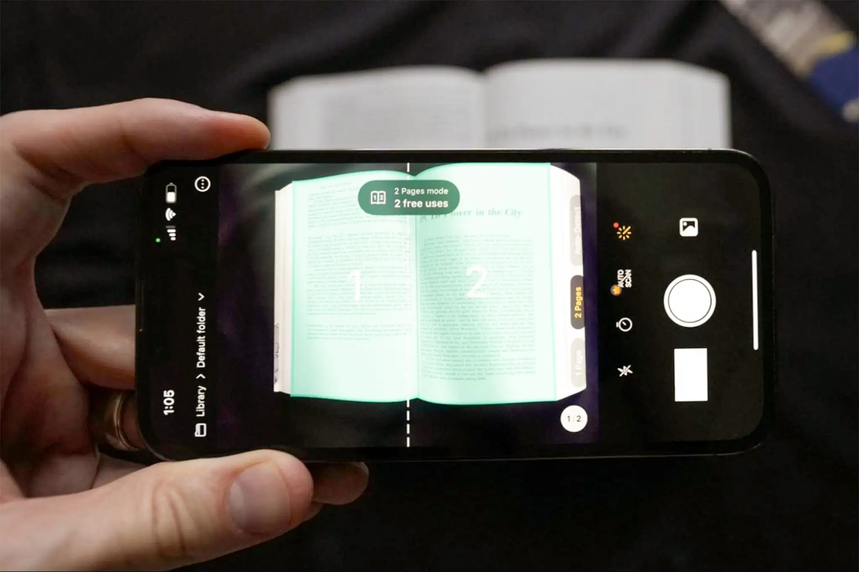
A good scanning app identifies the boundaries of a page and crops out the surrounding table or background. This saves time and produces cleaner documents.
PDF Export and Sharing
The app should allow you to save scanned pages as PDF files and share them through email, messaging apps, or cloud storage. Multi-page scanning is especially helpful when digitizing lengthy documents.
Privacy and Storage Controls
Documents may contain financial details, personal information, or business records. Check whether processing happens on your device or online, what information the app collects, and whether cloud uploads can be disabled.
1. Adobe Scan
Adobe Scan is a popular choice for people who want to digitize paperwork using a smartphone. It can detect document edges, improve scanned images, and create PDF files. Its text-recognition capabilities help users work with documents beyond simply viewing page images.
Key Features
- Automatic document detection and cropping.
- OCR for recognizing printed text.
- Multi-page PDF creation.
- Image cleanup and document adjustments.
- Integration with Adobe’s document tools.
Who Should Use It?
Adobe Scan is suitable for students, professionals, and people who regularly scan forms, receipts, and printed notes. Its automatic processing reduces the effort needed to create readable documents.
Some advanced editing, exporting, or document-management features may require a paid Adobe plan. Check the current free-tier limitations before relying on a specific feature.
2. Microsoft Lens Alternatives and Microsoft 365 Tools
Microsoft Lens was widely used for scanning notes, whiteboards, and documents. However, Microsoft announced its retirement, and its availability and functionality have changed. Users should not assume that it remains a fully supported scanning option.
People who prefer Microsoft’s ecosystem can explore the scanning capabilities available in Microsoft 365 apps and other currently supported Microsoft tools.
Key Features to Look For
- Document capture and cropping.
- PDF creation or export.
- Integration with Microsoft OneDrive.
- Text extraction or OCR where supported.
- Easy access to files across devices.
Who Should Use Them?
These options may suit users who already organize documents through OneDrive or work with Word and other Microsoft applications. Because scanning and OCR features can vary by app, operating system, and subscription, verify that searchable PDF creation is supported before choosing a replacement.
3. Google Drive
Google Drive offers a convenient document-scanning option on supported mobile devices. It is particularly useful for people who want their scanned files stored alongside their other cloud documents.
Key Features
- Mobile document scanning.
- Automatic cropping and image adjustments.
- Cloud storage and file sharing.
- Access to documents from multiple devices.
- Integration with other Google productivity tools.
Can Google Drive Create Searchable PDFs?
Google Drive can support text recognition in certain document workflows, but the experience depends on how the file is scanned, stored, and processed. Do not assume that every scanned PDF automatically contains searchable text.
If searchable PDFs are essential, test a sample document by opening the finished PDF and searching for a word that appears on the page. This simple check can reveal whether the text is genuinely searchable.
Who Should Use It?
Google Drive is a practical choice for students and professionals who already use Google accounts to store and share files. It also reduces the need to transfer scanned documents manually between devices.
4. Genius Scan
Genius Scan is designed to make mobile document scanning quick and organized. It offers page detection, image processing, and document-management features, with some functions depending on the platform and plan.
Key Features
- Automatic page detection.
- Perspective correction.
- Batch scanning for multiple pages.
- PDF creation and sharing.
- Document organization tools.
OCR Availability
OCR and text-search functionality may depend on the version or subscription. If you specifically need searchable PDFs at no cost, review the current plan details rather than assuming that every scanning feature is included in the free version.
Who Should Use It?
Genius Scan can be useful for freelancers, business owners, and people who frequently digitize receipts, invoices, or paperwork. Its scanning workflow is designed to reduce the time spent processing individual pages.
5. CamScanner
CamScanner provides tools for capturing paper documents, adjusting image quality, and exporting files in digital formats. It has been used for scanning everything from classroom notes to business paperwork.
Key Features
- Automatic document cropping.
- Image enhancement.
- Multi-page scanning.
- PDF creation and sharing.
- OCR and additional document features, depending on the plan.
Is the Free Version Enough?
The free version may include restrictions, advertising, watermarks, or limitations on certain features. OCR availability and export options can also change.
Before scanning a large collection of documents, create a test PDF and check whether it has watermarks, whether its text is searchable, and whether the export quality meets your needs.
Who Should Use It?
CamScanner may appeal to users who want several scanning and editing tools in one application. However, people handling confidential documents should carefully review the app’s privacy practices and permissions before uploading files.
6. Apple Notes
Apple Notes provides a built-in document-scanning feature on supported Apple devices. This makes it convenient for iPhone and iPad users who want to digitize documents without installing a separate scanning application.
Key Features
- Built-in document scanning.
- Automatic page detection.
- Document cropping and capture adjustments.
- Saving scans inside notes.
- Integration with the Apple ecosystem.
Are Scanned Documents Searchable?
Apple Notes can recognize text in supported content, but searchable behavior can depend on the device, operating-system version, language, and document format. A scan stored in Notes should not automatically be treated as an exported, OCR-enabled PDF.
If you need to send a searchable PDF to someone else, test the exported file independently.
Who Should Use It?
Apple Notes is a convenient starting point for users who only scan documents occasionally. It is particularly useful for keeping receipts, handwritten notes, and reference pages together with related notes.
7. Notebloc Scanner
Notebloc Scanner is another option for people who regularly digitize handwritten notes, textbook pages, and printed paperwork. Its tools focus on making photographed documents easier to read and organize.
Key Features
- Document edge detection.
- Perspective correction.
- Image cleanup.
- Multi-page document scanning.
- PDF export and sharing.
OCR functionality and language support may vary by version. Check the current app listing and test text recognition before depending on it for searchable PDFs.
Who Should Use It?
Students and educators may find this type of scanning app useful for converting paper notes into digital study materials. It can also help users create cleaner digital copies of printed handouts.
How to Choose the Right Free PDF Scanner
The best app depends on the documents you scan and what you intend to do with them.
| Your main requirement | What to prioritize |
| Searchable PDFs | Included OCR and reliable text recognition |
| Classroom notes | Multi-page scanning and clear image processing |
| Receipts and invoices | Fast capture and simple organization |
| Office documents | PDF export, sharing, and batch scanning |
| Cloud access | Reliable integration with your preferred storage service |
| Confidential paperwork | Clear privacy policies and local-processing options |
| Occasional scanning | A built-in or genuinely free scanning feature |
Do not select an app based on its feature list alone. Test it with the actual documents you need to scan. Small text, faded printing, unusual fonts, and handwritten notes can affect recognition quality.
How to Make Searchable PDFs More Accurate
Even a capable scanner can produce poor results if the original image is unclear. A few simple practices can improve the quality of your files.
Use Good Lighting
Place the document in a well-lit area and avoid shadows across the page. Natural, even lighting can make printed text easier for the scanner to recognize.
Keep the Camera Straight
Hold your phone directly above the document. Although many apps correct perspective automatically, capturing the page from a straight angle generally produces better results.
Check the Text After Scanning
Open the finished PDF and search for a word that appears in the document. If the search does not find it, the file may contain only page images or the OCR may have failed.
For important documents, compare recognized text with the original. OCR can confuse similar characters, omit punctuation, or misread numbers.
Use a Suitable Resolution
Small text requires enough detail to remain legible. Avoid excessive compression if it makes letters blurry, but remember that extremely large files can be harder to upload or share.
Protect Sensitive Information
Before using a cloud-based scanning service, review how it handles uploaded files. For highly confidential documents, consider whether an offline workflow is more appropriate.
The National Institute of Standards and Technology provides useful background on digital identity, privacy, and security practices through its official cybersecurity and privacy resources. These resources can help users think more carefully about protecting information when choosing digital services.
Common Mistakes to Avoid
One common mistake is assuming that every PDF is searchable. A PDF can contain pictures of pages without any recognized text. Always test the final file.
Another mistake is overlooking free-plan restrictions. Some apps advertise OCR or advanced export features but reserve them for paid users. Confirm the exact feature you need is included before scanning dozens of pages.
Users should also avoid keeping multiple unorganized copies of sensitive documents in different cloud services. Choose a clear folder structure, use appropriate account security, and delete unnecessary duplicates.
Finally, remember that OCR is not a substitute for proofreading. Legal forms, financial records, identification documents, and other important paperwork should be checked carefully before the recognized text is reused.
Conclusion
The best free apps for scanning documents into searchable PDFs combine clear image capture, reliable OCR, convenient PDF export, and sensible privacy controls. Adobe Scan, Google Drive, Genius Scan, CamScanner, Apple Notes, and Notebloc Scanner each offer different advantages, while Microsoft Lens users should check currently supported alternatives.
Before choosing an app, verify that its free version supports searchable PDFs rather than just ordinary image-based scans. Test it with a few real documents, check the quality of its text recognition, and review its storage and privacy settings. A short trial can help you find a scanning workflow that saves time and keeps your digital paperwork organized.